OpenMausBot on Kubernetes: From a Retest Message to a Downloadable Report
OpenMausBot lets people assign work to individual bots in chat. We gave a release-review bot synthetic test counts and asked which component needed attention first. On the second turn we told it only that two Birch failures had passed on retest, then requested a report. It revised the overall pass rate from 91.7% to 95.0% and produced a page card we could open. The HTML downloaded from the workspace contained all three updated rows.
1. What ran in the cluster
The OpenMausBot server, called the harness, receives browser messages, stores conversations, invokes the engine selected for each bot, and records tool activity and outputs in the thread. We used the built-in OpenAI-compatible chat engine with inference outside the cluster. The report used the workspace’s own page tool, so this task required no desktop VM. Project repository · Model providers and engines
| Item | Configuration tested |
|---|---|
| Version | Official v0.1.169 server package on Linux, Node.js 24, one replica |
| Resources | Application limit of 2 CPUs and 2 GiB RAM, plus a model relay container. The experiment requested no GPU |
| State | A 2 GiB RWO volume held the application package and lab data. The workspace lived at /data/.openmausbot |
| Access | The harness listened on loopback. The browser connected through a local port-forward and required one-time device pairing |
| Model | A relay in the Pod accepted Chat Completions requests. A worker on an office computer forwarded them to the model endpoint and had to remain online |
The node’s connection to GHCR reset during the official image pull, leaving the Pod in ImagePullBackOff. We used openmausbot-0.1.169.tgz from the same release, prepared dependencies for Linux x64, and started the package in an available Node.js 24 container. This exercised the official server package and web UI. Chat and the page tool ran with that package. Section 6 covers the extra components used to get a live browser view. External app connectors and cloud desktops require separate configuration. Release artifacts · Self-hosting guide
2. Open the workspace and pair a device
Our Deployment was named openmausbot. From a terminal with cluster access, run the following command, then open http://127.0.0.1:18791/ on that computer.
A new browser prompts for a pairing code. Run the following command in a second terminal, paste the new code, name the device, and choose Connect. The default code works once and expires in ten minutes. This command uses our npm release layout. The official image also provides openmausbot pair on its path.
kubectl -n openmausbot-lab exec deployment/openmausbot -c mausbot -- \
  node /data/runtime/node_modules/openmausbot/dist-server/openmausbot.js pair --label "My browser"
Set the endpoint with OPENAI_COMPAT_URL, select the served model with OPENAI_COMPAT_MODEL, and inject OPENAI_COMPAT_API_KEY from a Secret. Our application received a credential for the relay. The upstream model key stayed on the office computer. HTTP 200 from the home page established web reachability. We used the following task to verify inference.
3. Give the bot only the change
The first turn supplied pass counts and totals for three components in one synthetic release. The second turn mentioned only the two Birch failures that passed on retest. We checked the rate by weighting individual cases, with the denominator fixed at 60.
| Component | First run | After retest |
|---|---|---|
| Atlas | 19/20 | 19/20 |
| Birch | 12/15 | 14/15 |
| Cedar | 24/25 | 24/25 |
| Total | 55/60, 91.7% | 57/60, 95.0% |
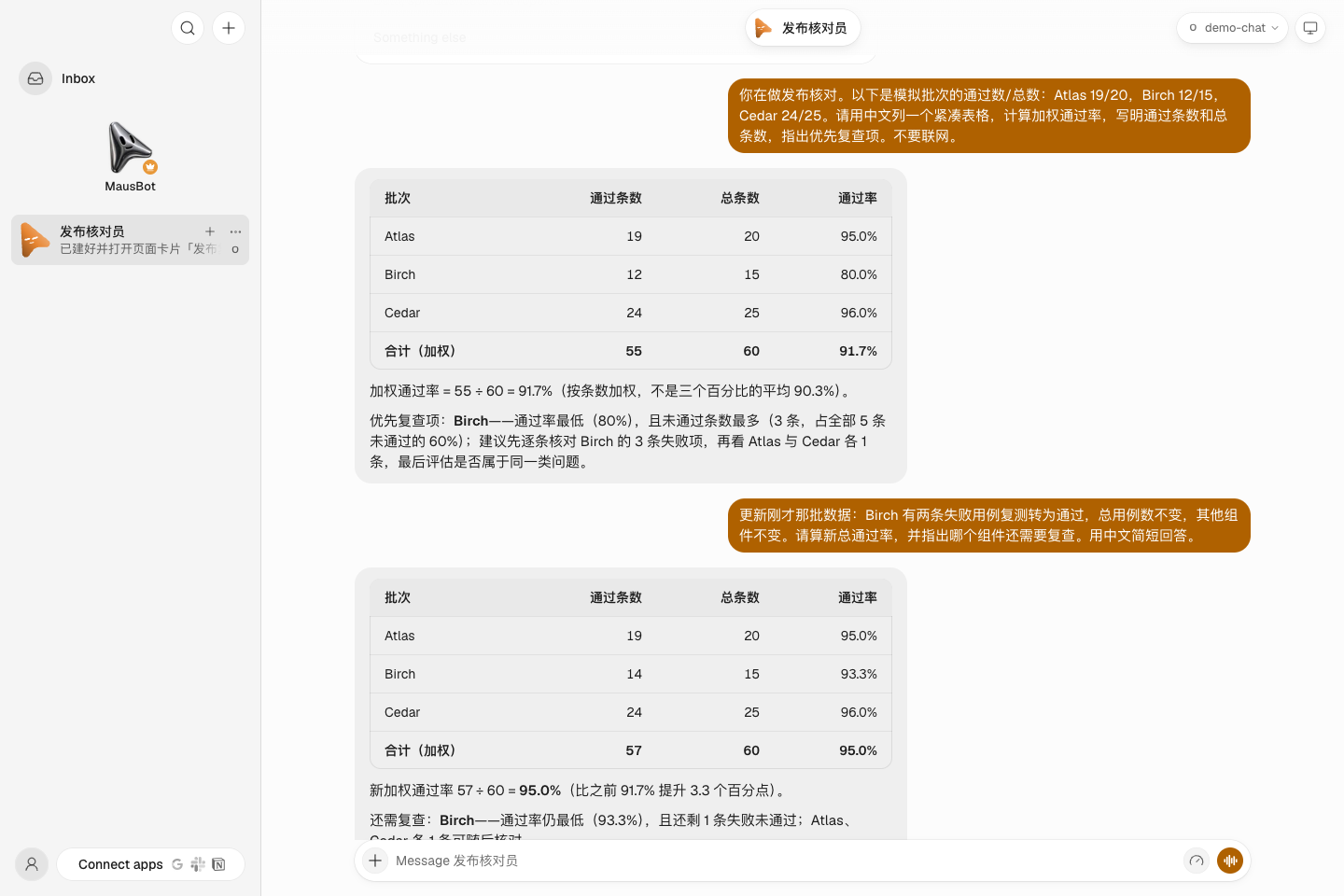
Figure 1. Birch accounted for three of the five initial failures. After retesting, each component had one remaining failure and Birch still had the lowest rate. Both answers agreed with the independent calculation.
4. From a reply to a downloadable page
On the third turn we asked for a page in the workspace titled “Release retest record.” The trace recorded two agents_find_tool calls followed by one agents_show_html call. A new message of type app then appeared in the thread. We opened its card and used the UI’s download endpoint to retrieve 5,652 bytes of HTML. The file contained all three components, 57 passes, and 95.0%. That gave us a deliverable we could inspect independently of the conversation.
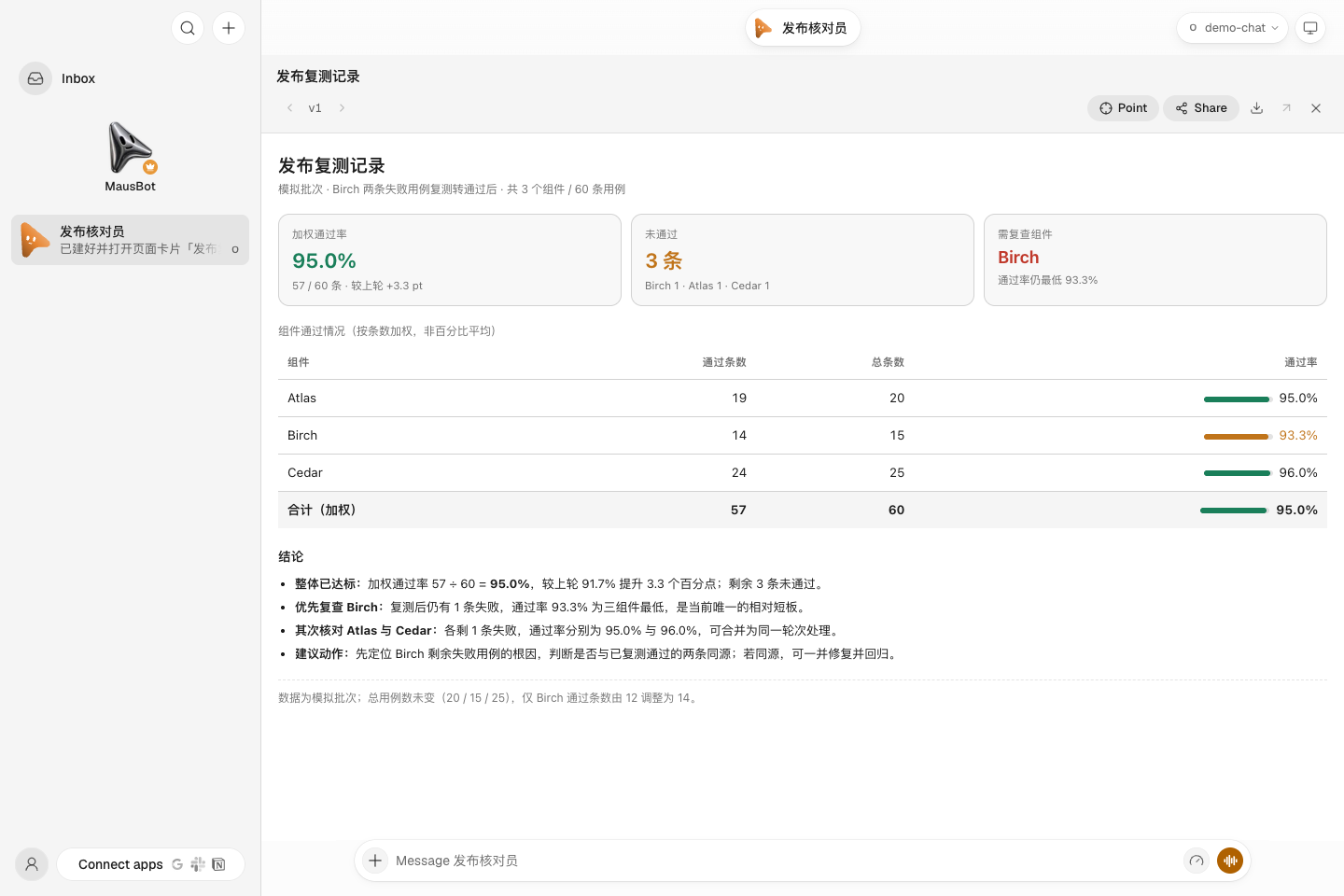
Figure 2. The opened page distinguishes Birch’s 93.3% from the overall 95.0%. The table includes the underlying counts, so a reader can recalculate both.
5. What survived a restart
To keep the active browser online, we started a separate harness process in the same Pod on different ports, with a separate data directory on the volume. We asked its test bot for 37 + 46, recorded the thread ID, message ID, and reply, then sent SIGTERM to that process. It exited normally with code 0. A new process opened the same directory. Reading the original thread returned the same message ID and the same reply, 83. This verified process-level recovery of a completed conversation. Pod eviction, node loss, and resuming a turn interrupted mid-generation require different tests. Data and backups
6. Open a page in the bot’s browser
Two copies of Chrome are involved. One runs on the visitor’s computer and opens the workspace. The other runs in the lab Pod and opens pages for the bot. Device pairing and chat can work while the Browser tab still reports that its browser is missing.
Clicking Install browser returned fetch failed. The npm server was running, but the Pod lacked both agent-browser and Chrome. The namespace restricted outbound traffic, so the installer could not fetch them. We extracted agent-browser 0.37.0, Chrome for Testing 158.0.8127.36, and their runtime libraries from the matching official Linux image and installed them on the workspace’s persistent volume. The tools began streaming frames, but the UI still displayed the previous installation error. Restarting the workspace with the volume attached cleared that error and restored the Browser panel. Browser packaging and container runtime notes
For verification, we served a test page on loopback inside the Pod and opened http://127.0.0.1:18775/ in the bot’s browser. The right-hand panel showed the page heading and test button. The live preview returned a 1280×720 frame. Here the address refers to the bot’s Pod. This verified loading a controlled page and streaming it back to the workspace. Access to public websites still depends on the cluster’s egress policy.
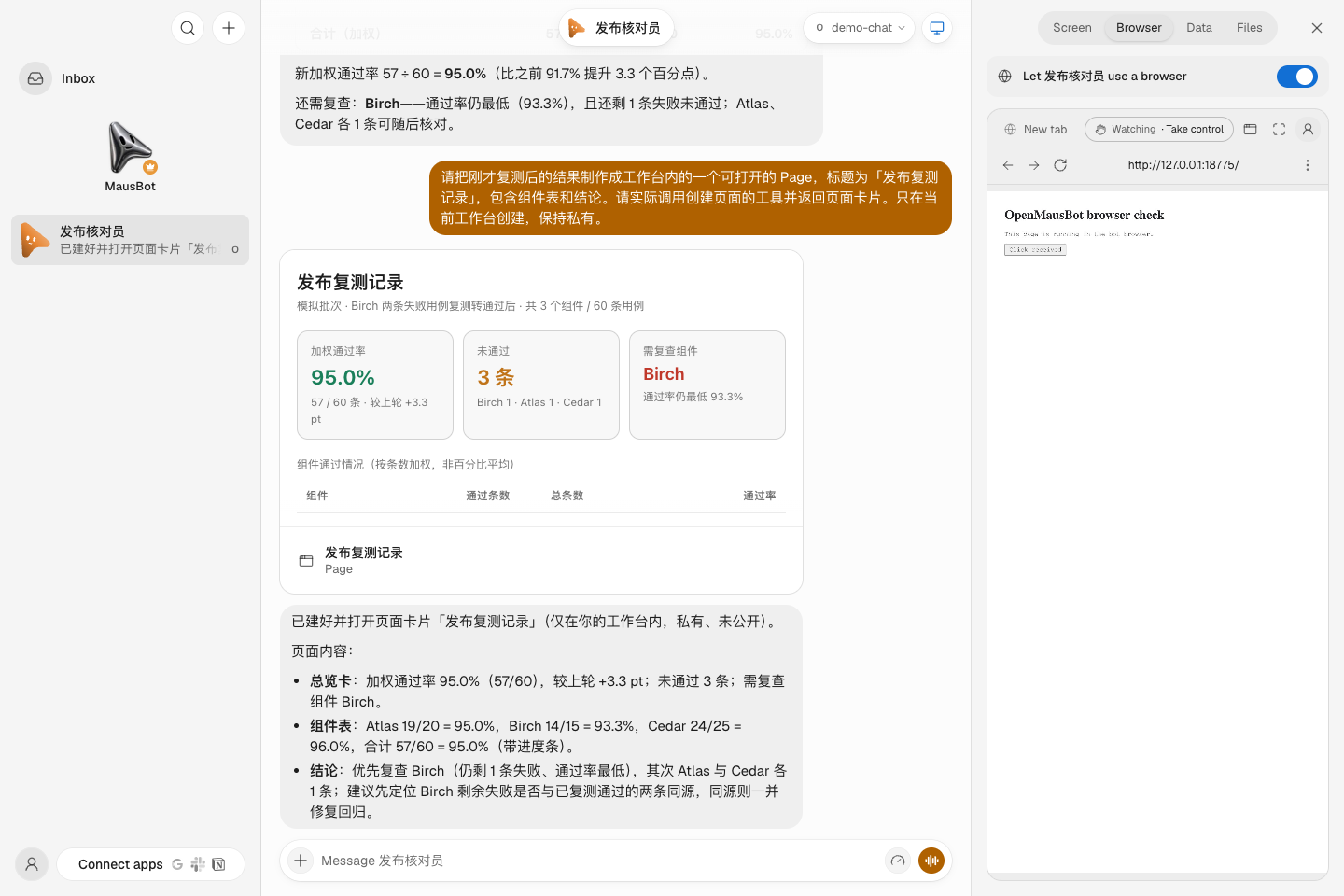
Figure 3. The address bar on the right belongs to the bot’s browser. Choose “Take control” to interact with the tab from the workspace.
The Screen panel shows the entire computer assigned to a bot. Our bot had no desktop backend attached. Pairing an office browser grants no access to that computer’s desktop. For a desktop application test on Kubernetes, one option is to provision a dedicated Linux VM running Docker, connect it over SSH using the self-hosted VPS flow, and assign it to the test bot. We have yet to test that configuration. Supported computer types · Bring your own VPS
This experiment can be repeated to check whether a bot turns changing inputs into a report a colleague can take away. For a task that exercises a virtual desktop, files on that desktop, and independent verification from the computer container, see the companion lab. Rakazo on Kubernetes